Organize your way
Create collections for projects, interests, or whatever makes sense to you. Nest them when you need more structure.
FavLock Bookmarks
Save the recipe, the reference, or the place you want to visit. Give every useful link a place in a library you can come back to.
Included in your FavLock library. Start with the free plan.
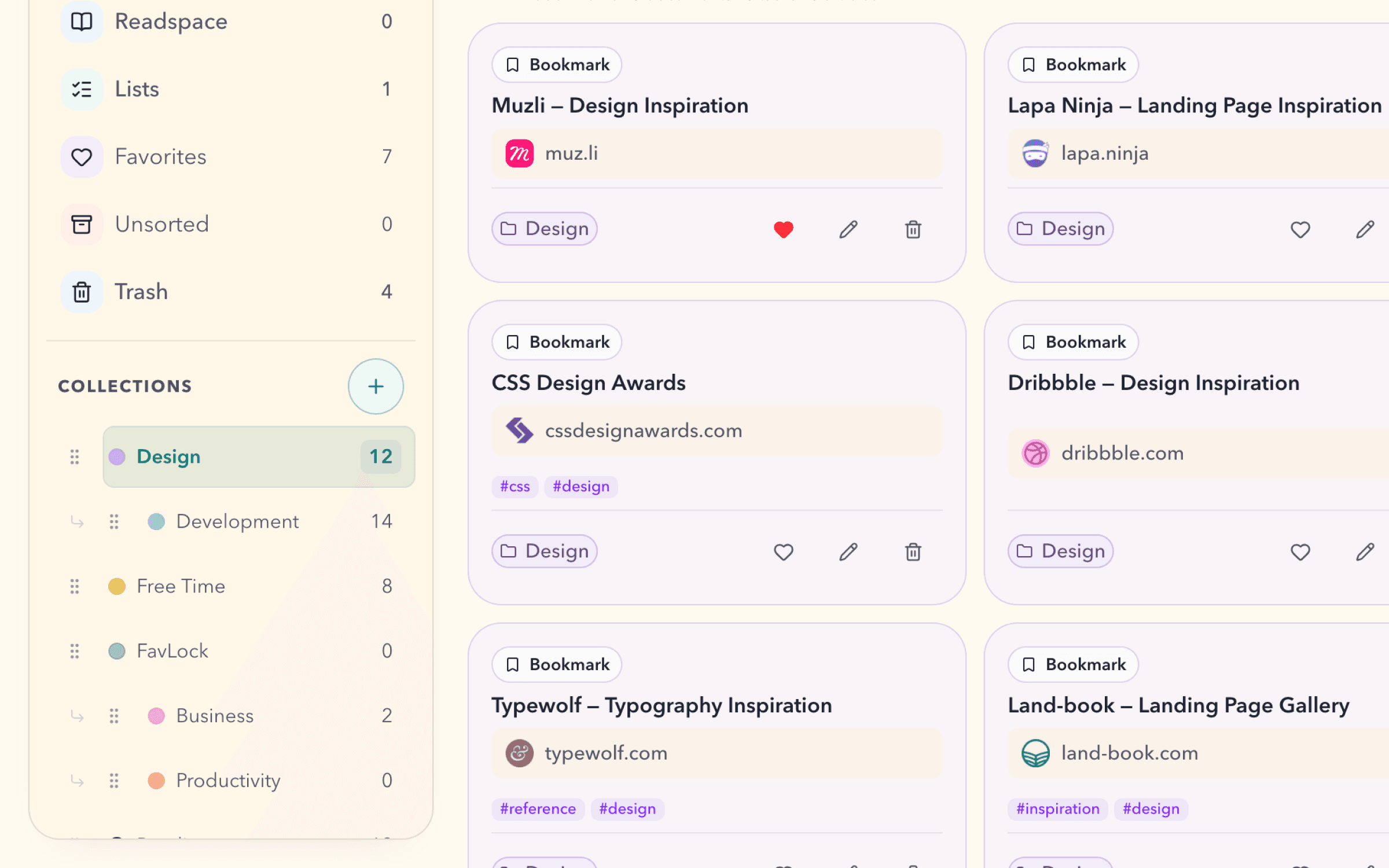
Create collections for projects, interests, or whatever makes sense to you. Nest them when you need more structure.
Use tags to find related links across collections. Keep regular destinations in Favorites and sort new saves when you have time.
Search bookmark titles, URLs, tags, and collections locally. Narrow results with Free filters for fields, item types, tags, collections, and favorites. Open the original page when you are ready to return.
Saved Smart ViewsPro
Save a search and its filters as a shortcut in your sidebar. Open it any time to see current matches without setting up the same search again.
Learn how Smart Views work →Keep your search words and filters together. Choose a field, then narrow results by item type, tag, collection, or favorites.
Choose a name, icon, and color for the view in your sidebar. You can change its appearance later.
Results and the sidebar count update as your library changes. Your view details are encrypted before they are saved.
Bookmark sorting
Catch up on recent saves, revisit an old reference, or reach the tools you use every day. Change the order to fit what you need next.
Start with your newest saves, or bring older links back into view.
Browse bookmark titles from A–Z or Z–A when you know what you are looking for.
Bring links from the same website together, ordered A–Z or Z–A.
Bring the bookmarks you open most often in FavLock to the top.
Sort collections and tags separately. To set your own order, move each one up or down, jump it to the top or bottom, or move a collection into another. Every action is a tap, so it works just as well on your phone.
List collections and tags alphabetically. Subcollections stay under their parent.
Put the collections and tags with the most saved items first.
Put them in exactly the order you want. Your order is saved with your library.
Turn on Favorites first to keep favorite bookmarks above the rest. In the Favorites view, you can also sort by the date you favorited a link, newest or oldest first.
Learn how to sort bookmarks →Import
FavLock reads your export in the browser and shows a preview before anything is saved. Repeated links in the file are skipped, and for links already in your library you choose to skip, keep both, or overwrite.
Chrome, Edge, and Firefox bookmark HTML files, or a Safari ZIP export. Folders become collections.
Move browser bookmarks →The export you downloaded before Pocket shut down. Tags and the unread or archived split come along.
Import from Pocket →A Raindrop.io CSV export. Folders become collections and tags stay attached.
Import from Raindrop.io →Private by design
Bookmark titles and URLs are encrypted in your browser before storage and sync. Account details and operational metadata are handled separately to run the service.
Read the security model →1,000 bookmarks on Free. Unlimited bookmarks on Pro.
Compare plan limits →Up to 10. Collections and tags are unlimited on every plan.
Yes, one level deep: a collection can hold subcollections. Each bookmark belongs to one collection at a time, and tags connect it to related links elsewhere.
Yes. Import browser bookmark files, a Pocket export, or a Raindrop.io export, keeping folders as collections and bringing tags along when the export includes them. The data transfer guide explains formats and duplicate handling.
No. You can add bookmarks in the web dashboard. The Chrome and Firefox extensions are optional for saving links while you browse.
A bookmark keeps a link to the original page, which needs to remain available. Use Readspace to capture supported article snapshots with the Chrome or Firefox extension.
Yes. Export a browser-compatible HTML file or an encrypted FavLock archive. HTML files are readable, so store them somewhere you trust.