Choose what you need to keep
A bookmark or reading-list item takes you back to the live website. An article snapshot keeps the text captured when you saved it. Choose based on what you expect to need later.
| What you need later | What to save | Why |
|---|---|---|
| The latest version of a page | A bookmark | It opens the current website. |
| The article as it looks now | An article snapshot | It keeps the captured text even if the page changes. |
| One passage and its source | A highlight | It keeps the specific words you plan to use. |
If you only want to finish an article later today, start with the browser’s reading list. You can always save a longer-lived copy later.
Use a browser reading list for a quick save
In desktop Chrome, right-click the article’s tab and choose Add tab to reading list. You can also open the three-dot menu, then Bookmarks and lists, Reading list, and add the current tab there. To return, choose Show reading list from that menu. Google documents these controls in its desktop reading guide.
Add the article, make sure it appears, and close the tab. A short queue works best when interruption—not archiving—is the problem.
If you need a downloaded page without a connection, Chrome also has Save page as under Cast, save, and share. Open the resulting file and test it offline before relying on it.
If you used Pocket
Mozilla shut Pocket down on July 8, 2025, and the export closed for good on November 12, 2025. If you downloaded your export before then, your saved links are still usable. If you didn’t, Pocket can no longer provide them.
Pocket’s export is a list of links with titles, tags, and whether each item was archived. According to Mozilla, it doesn’t include the article text, so a link to a page that has since disappeared can’t be restored from the file.
- 1
Find the file you downloaded
Look for the Pocket ZIP file with CSV files such as part_000000.csv inside. A single CSV or an older ril_export.html file also works. - 2
Import it into FavLock
Open Data transfer, choose Import bookmarks, and check the preview. Unread saves go into a Pocket collection, archived saves into Pocket › Archive, and tags stay attached. The Pocket import page lists what carries over. - 3
Save the articles you still want to read
Open the imported links you care about and save a readable snapshot of each one in Readspace, as described below.
Save a readable article in FavLock Readspace
Use Readspace when you want the captured article beside your bookmarks and notes. New captures require the FavLock Chrome extension or Firefox extension. Connect it to your FavLock account and unlock your library before saving.
- 1
Open the article, then Reader
Visit the page in Chrome or Firefox and open FavLock’s extension popup. Choose Reader to prepare the visible article in a focused reading view.
- 2
Check the preview
Look at the beginning, the end, and the section you need. If a table, image, or paragraph is missing, keep the original link too.
- 3
Choose Save to Readspace
Wait for Saved and the confirmation that the article was saved. Opening Reader alone does not add the article to your library.
- 4
Open the saved article
Go to Readspace in the dashboard and open its card. Use Organize on the card to assign a collection or tags after saving.
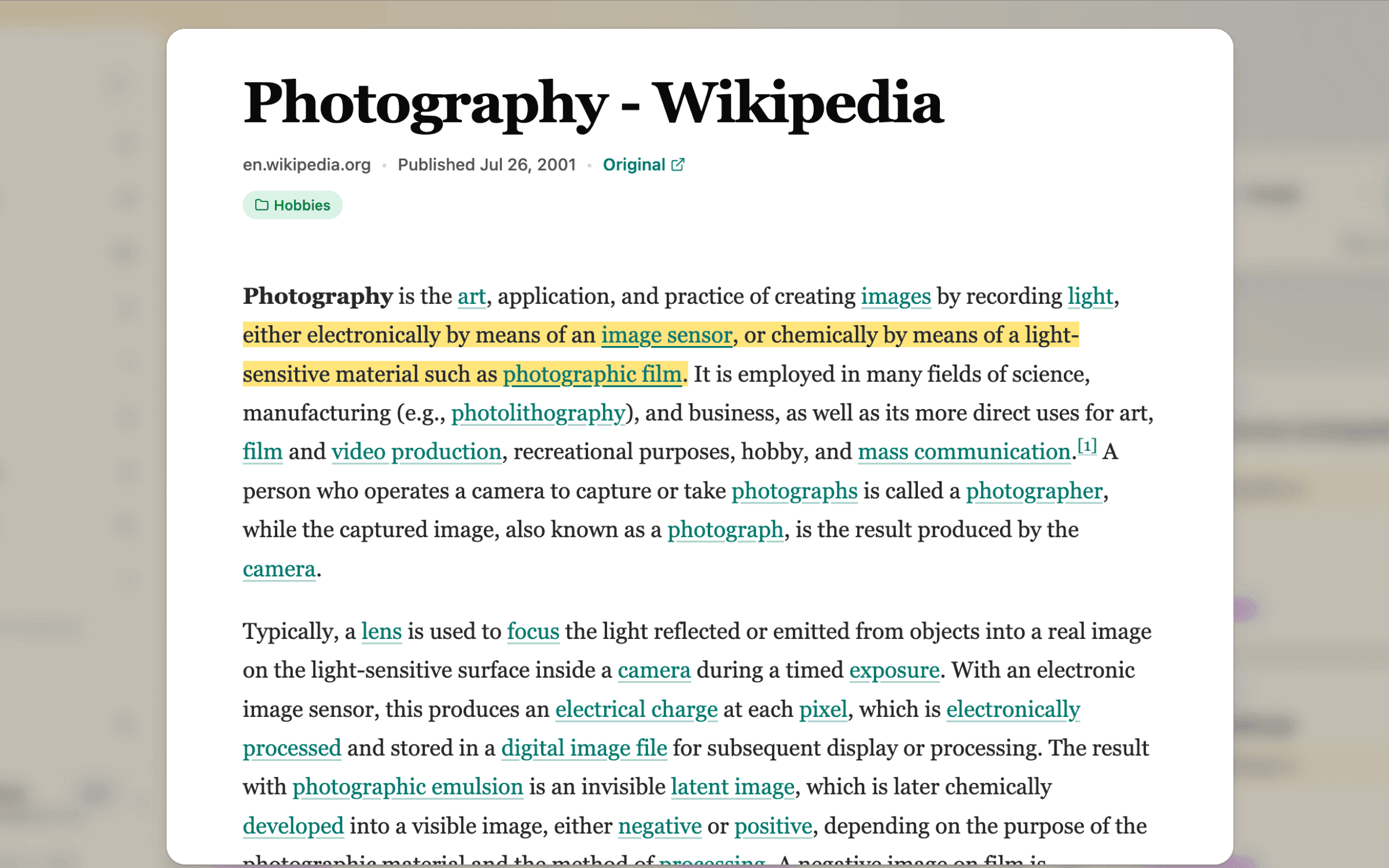
FavLock encrypts the article title, snapshot, source URL, and available citation details in your browser before storage or sync. Once saved, the article can be read from Readspace in other supported browsers; they don’t need an extension just to display it.
Give the article a home you’ll remember
Put the article in the project or subject where you will look for it. Add a to-read tag if you need to separate unread items from reference material. Remove the tag after reading.
These are your labels, not automatic reading statuses. If project Collections feel like work, use one Reading Collection instead. For a single passage, use a highlight; the web highlighting guide explains how to keep it with enough context.
Make the next reading session easy to start
Choose one article you still want to read. An old save is not an obligation; remove it if it no longer matters.
When you’re looking for a particular article in Readspace, start with a word from its title, Collection, or tag. Those searches work on every plan. Pro can also search decrypted article text locally, so a phrase from the article may find it when you have forgotten the headline.
If the queue keeps growing, separate “read soon” from reference material. Reference pages do not need to compete for your next reading session.
Check what your saved copy actually contains
An article snapshot is not a complete archive of an interactive site. A calculator, video, live table, or remotely loaded image may require a connection or may not be captured. Keep the source link when the preview misses something important.
A snapshot also will not pick up later corrections. Use Original when current information matters, and test offline access on the device you will use. For a separate backup, see the export and offline archive instructions.
Save the article, not another tab
Keep readable articles in Readspace.
Capture articles from Chrome or Firefox, then read the saved copy from your other supported browsers. Start free with up to 1,000 bookmarks.